|

Simple Plot Activity Help
How Do I Run This Applet?
This applet allows the user to input a series of (x,y) ordered pairs and plot them either as a
connected function or unconnected data points. Parameters such as minimum and maximum x
value, minimum and maximum y value, and x- and y-scale can be set by the user or determined by
the applet.
This java applet requires a java-capable browser. If you don't see the applet,
Java may not be functional in your browser or on your machine.
This applet is not currently (4/22/98) available in alternative forms.
Controls and Output
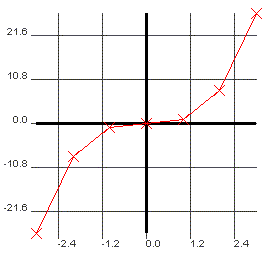
- The area at the top of the screen is where the plot is displayed.
- The textfield labeled Ordered Pairs is where you input the
points
you want to graph. The points should be in the format
(x coord 1, y coord 1)
(x coord 2, y coord 2)
..
..
You can plot up to five sets of points. To do this, separate each set
of points by the word newgraph on a line by itself. You may also specify
the color of your graphs by using the following keywords in place of newgraph:
bluegraph,redgraph,greengraph,graygraph,cyangraph,
and magentagraph.
After you input the coordinates, you must press the Plot button
to graph them.

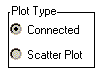
- You can choose from two plot types. "Connected" draws a line
from
one point to the next. (Note that before the line is drawn the points are
sorted by their x coordinates.) "Scatter Plot" just draws the points
as dots on the graph.
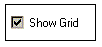
- Checking Hide Grid will cause the grid over the graph to be hidden. Unchecking it
will cause the grid to appear. The distance between gridlines is determined by the x- and
y-scales.
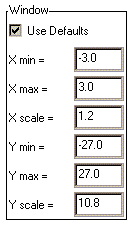
- The Window settings determine how the graph will appear on your
screen. X min and X max are the minimum and maximum x-values displayed
on the graph. Similarly for Y min and Y max. The X scale is the distance
between vertical gridlines if Show Grid is checked.
The Y scale is the
distance between horizontal gridlines if Show Grid is checked.
If the
Use Defaults box is checked,
Simple Plot will choose appropriate values
for you. If you uncheck that box, you can override Simple Plot's values
with your own. Any changes you make to the window parameters will take
effect the next time you click the Plot button.
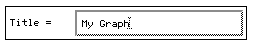
- By entering text into the Title= field you can change the title of
your graph. After changing the title hit plot to see the new title at the top of your graph

Please direct questions and comments about this page to Interactivate@shodor.org
© Copyright 1997-2000 The Shodor Education Foundation, Inc.
|